

Collaboration
Recruiters and hiring managers review the same recordings, leave notes, share deep links, and align before the next conversation.
When your team opens the same application in the Hirekal console, everyone sees the same video responses, ratings, notes, and pipeline stage - so review stays in one place instead of scattered across email or Slack.
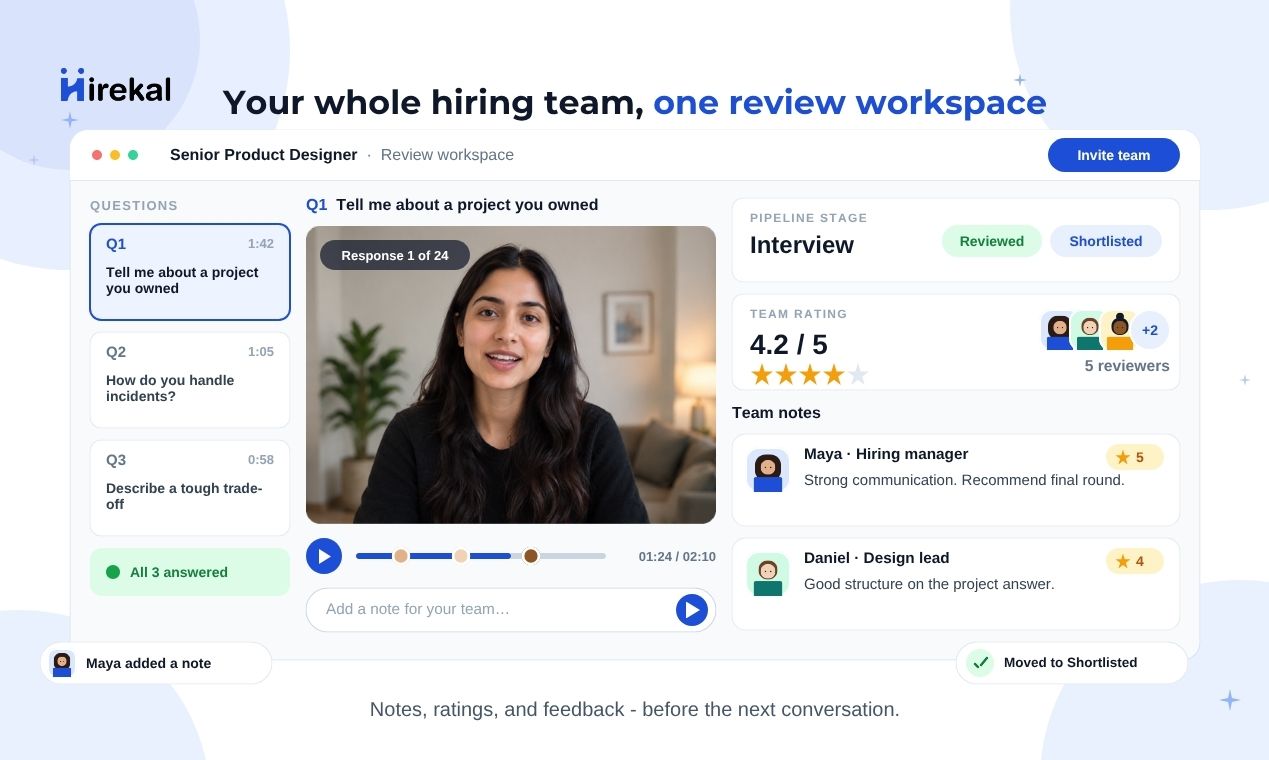
Shared review
Multiple team members can open the same candidate application and watch the same question-by-question recordings. Use the Responses, Transcript, and Activity tabs in the candidate drawer to review without duplicating work. See Collaboration on the main site.
Open applications from the job Applications tab, the Dashboard recent list, or a shared link (see below).
Copy link to this candidate
Use Copy link to this candidate (link icon in the candidate drawer header) to copy a console URL that opens this application directly.
Teammates who open the link land on the job Applications tab with the candidate drawer open - useful when a hiring manager should review one submission without searching the list.
The link includes the current stage filter when one is active, so everyone sees the same context. Success feedback: Link copied to clipboard.
Team rating
Each application has a star rating (1–5) in the candidate drawer, next to the video. Any teammate with access to the job can set or update the rating as a quick signal of fit.
Ratings are per application, not per individual video question. Use them alongside notes and your own playback - they do not auto-decide who moves forward.
Team notes
Open the Notes tab to leave comments for your team. Notes appear in a shared thread with the author name and timestamp - like a lightweight team chat on that application.
Anyone with console access to the job can add a note. New notes also show on the Activity tab so you can see who said what and when.
Pipeline stage
Stage is separate from notes and ratings. In the candidate drawer, use the Stage dropdown to move the application through your job pipeline - for example To Be Reviewed, Shortlisted, or Rejected. Configure default and custom stages in Job settings.
Stage changes are recorded in Activity (who moved the candidate and when). When webhooks are enabled, stage changes can notify your ATS.
Who does what
| Action | Where in the console | Who typically uses it |
|---|---|---|
| Watch recordings | Candidate drawer - Responses / Transcript | Recruiter, hiring manager, coordinator |
| Copy link to candidate | Candidate drawer header - link icon | Recruiter sharing with a hiring manager |
| Set star rating | Candidate drawer - Rating (1–5 stars) | Anyone reviewing the application |
| Add a team note | Candidate drawer - Notes tab | Recruiter, hiring manager, coordinator |
| Change stage | Candidate drawer - Stage dropdown | Recruiter or hiring manager advancing / rejecting |
| See history | Candidate drawer - Activity tab | Anyone catching up on ratings, notes, and stage moves |
Workflow tip
Agree internally on what your star rating scale means before high-volume hiring - for example what a 3 vs a 5 represents - so scores stay comparable across reviewers.
Related pages
| Topic | Page |
|---|---|
| End-to-end recruiter flow | Interview workflows |
| Recruiter step-by-step | Recruiter workflow |
| Transcripts alongside video | Transcripts |
| Speech score signals | Speech scores |
| Invite teammates | Team & roles |