

CSV export
Download applications for a job as CSV using filters from the applications list.
Export applications from a job for offline analysis, reporting, or import into other tools - the same CSV export feature on the main site. The download reflects whatever filters you have applied on the applications list - stage, search rules, and sort order. For live updates, use Webhooks.
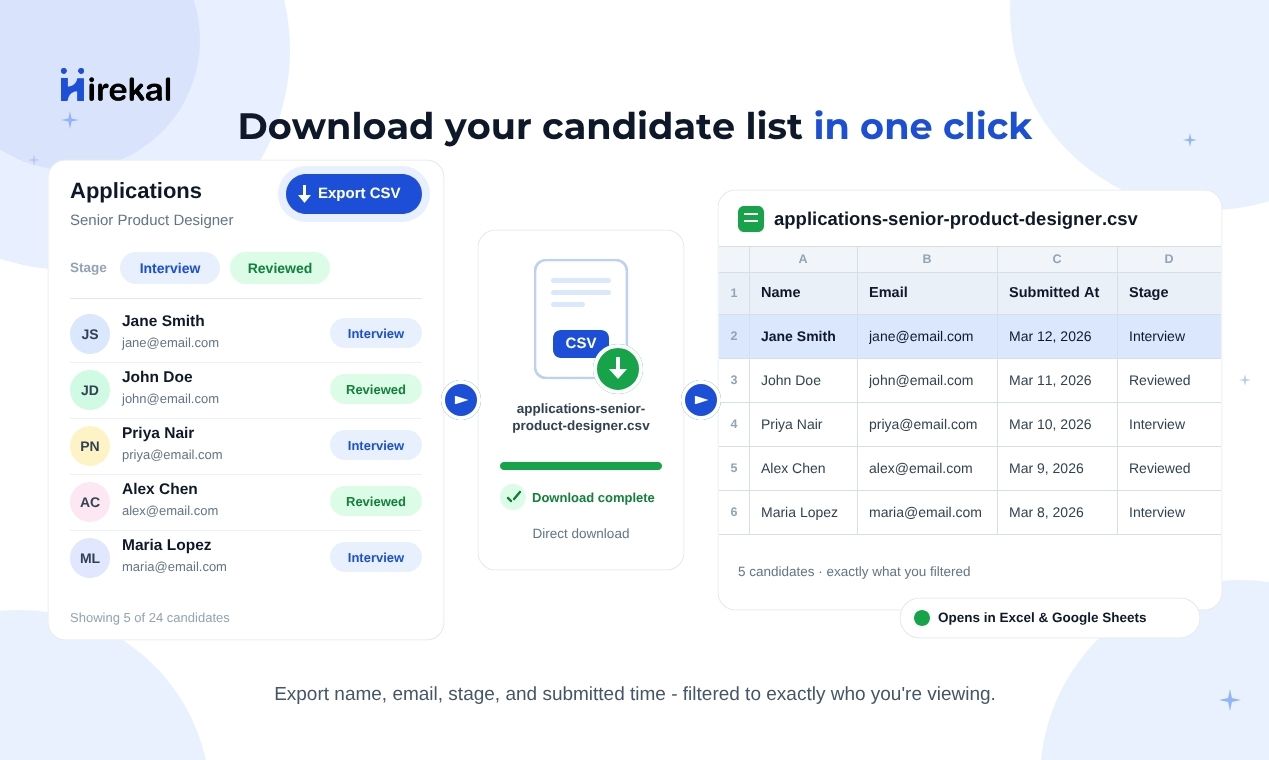
How to export
Open the job in the console.
Go to the Applications tab for that job.
Filter by stage or advanced rules - optional.
Click Export - downloads all matching applications.
Open the job
Open the job in the Hirekal console from your jobs list.
Applications list
Select the Applications tab on the job detail page. This is where you review candidates, change stages, and export.
Apply filters
Narrow the list before exporting if you only need a subset:
| Filter | What it does |
|---|---|
| Stage | Click a pipeline stage chip to show only applications in that stage |
| Advanced filters | Rules on candidate name, email, rating, applied date, and speech scores |
| Sort | Order by name or submitted date (ascending or descending) |
Export includes every application that matches your current filters - not just the rows visible on the current page.
Export CSV
Click the Export button (download icon) in the applications toolbar. Hirekal downloads a file named like applications-{job-title}.csv.
What you get
Each row is one application. Columns in the CSV:
| Column | Content |
|---|---|
| Name | Candidate name |
| Candidate email | |
| Submitted At | When they submitted |
| Stage | Current pipeline stage |
The file opens in Excel, Google Sheets, or any spreadsheet tool. Teams often use it for weekly hiring reports, agency client trackers, or one-off data pulls before importing into another system.
Video recordings are not included in the file - use the console to watch responses. For live updates when candidates apply or stages change, use Webhooks instead of re-exporting.