

Job setup
Create and edit jobs in the console - intro media, application fields, questions, publish, and preview.
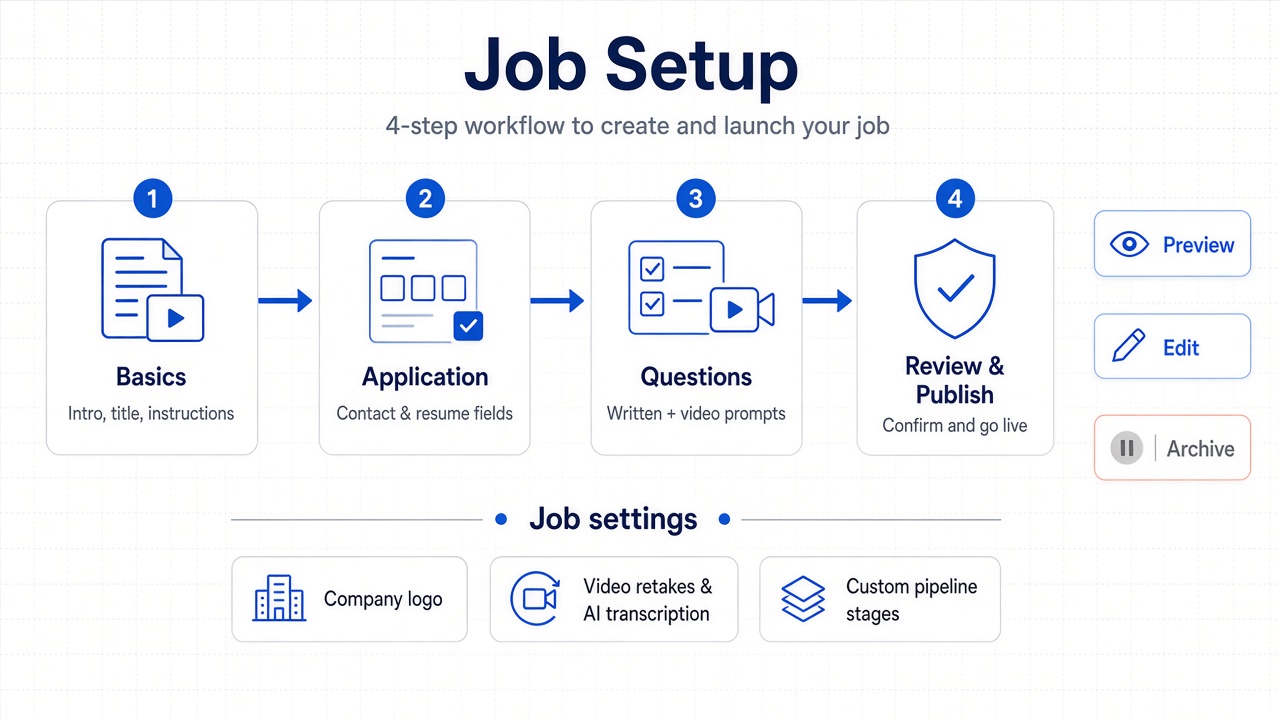
Everything you configure before candidates apply lives in the Create job wizard. After publish, configure branding, video defaults, and pipeline stages in Job settings, then use Interview workflows for sharing links, reviewing applications, and shortlisting.
Create job wizard
The console walks you through four steps. Unpublished drafts are not visible to candidates.
Intro media, job title, location, employment type, and instructions for candidates.
Application fields - contact details, optional requirements, and custom fields.
Standard response questions plus the required Media Responses video prompt.
Summary of basics, application fields, and questions. Publish when ready.
Step 1 - Basics
Intro Banner / Video
Add a welcome image or video so candidates understand the role before they apply. Options in the picker:
| Action | What it does |
|---|---|
| Upload Image | Static banner on the apply page intro |
| Record Video | Record a short welcome clip in the browser |
| Upload Video | Use a pre-recorded video file |
Advanced Options (optional):
| Setting | What it is for |
|---|---|
| Application Section Title | Heading above the application form (for example "Your details") |
| Apply Button Text | Label on the button that starts the apply flow |
Job Information
| Field | What it is for |
|---|---|
| Job Title | Role name shown to candidates and in the console (required) |
| Location | Where the role is based - for example Remote or a city |
| Employment Type | Full-time, Part-time, Contract, Internship, or Other |
| Instructions for Candidates | Rich-text guidance candidates read before starting - team context, expectations, or tips |
Step 2 - Application fields
Collect contact details and requirements before questions. Every candidate on the job sees the same fields.
Built-in fields
These are included by default:
| Field | Required by default |
|---|---|
| First Name | Yes |
| Last Name | Yes |
| Yes | |
| Phone Number | No |
Requirement toggles
Turn common requirements on or off with one click:
| Toggle | Field added |
|---|---|
| Resume / CV | File upload (required when enabled) |
| LinkedIn URL | URL field |
| Date of Birth | Date field |
| GitHub Profile | URL field |
Custom fields
Click Add Field to add your own fields. Choose a type, label, and whether it is required. Drag fields to reorder, or use the up/down controls.
| Field type | What it is for |
|---|---|
| Text | Short free-text answers |
| Email with format validation | |
| Phone Number | Phone number |
| URL / Link | Portfolio, LinkedIn, GitHub, or other links |
| Number | Numeric values - years of experience, salary band |
| Date | Dates - availability, start date |
| File | Document upload |
| Hidden | Not shown to the candidate - stores a fixed value for source or campaign tracking when the apply link includes query parameters |
Built-in contact fields cannot be removed; custom fields can be edited or deleted.
Step 3 - Questions
Two sections: Standard Response Questions and Media Responses.
Standard Response Questions
Optional written or choice prompts. Click Add Question for each one. Set the label, type, required toggle, and options (for choice types). Reorder with drag-and-drop or up/down.
| Question type | What it is for |
|---|---|
| Text | Short written answer |
| Multiline text | Longer paragraph-style answer |
| Email inside the question flow | |
| Number | Numeric response |
| Date | Date response |
| Single choice | Pick one option from your list |
| Multiple choice | Pick one or more options |
| Video | Extra async video prompt in the question flow - retakes are not offered for this type |
When Audio Transcription is enabled in Job settings, transcripts and speech scores are prepared from video answer audio.
Media Responses
The primary required video prompt every candidate must record - for example "Tell me about yourself". Response type is always Video and cannot be skipped.
Video Interview Retake Count in Job settings controls how many times a candidate can re-record this Media Responses answer (No retakes, 1 retake, 2 retakes, or Unlimited). This does not apply to standard Video question types in the list above.
Step 4 - Review & Publish
The review step shows a summary grouped as Basics, Application, and Questions - job title, company, location, employment type, each field, and each question. Use the pencil icon on any group to jump back and edit that step.
When everything looks correct, Publish to make the job live. Candidates can then open the apply link.
Edit a job
Open a job in the console and click Edit. You use the same four-step wizard. The final step reads Review & Save instead of Review & Publish - confirm your updates, then save. Existing applications are not removed when you edit fields or questions; changes apply to new candidates going forward.
Preview the apply experience
Before sharing a link, open the job and use Preview from the job actions menu. Hirekal opens the candidate apply flow in a new browser tab so you can walk through intro media, fields, questions, and recording - exactly as candidates will see it.
Preview is read-only: submitting from preview does not create a real application.
Manage job status
Control whether a job accepts new applications from the jobs list or job detail menu.
| Status | Meaning | Typical actions |
|---|---|---|
| Active | Live and accepting applications | Pause, Archive, Duplicate |
| Paused | Visible to you but not accepting new applications | Resume, Archive |
| Archived | Closed - no new applications | Restore, Delete |
Pause stops new applications while you keep the job and existing candidates. Archive closes the job when hiring is done. Restore brings an archived job back to active.
Delete permanently removes an archived job from your lists. Only archived jobs can be deleted - archive first if the job is still active or paused.
Duplicate creates a copy of the job setup so you can reuse fields and questions for a similar role.
Related
After you publish, continue with these docs: